Model Overview Panel
The Model Overview panel includes a list of the currently available trained and untrained models, and provides a summary of each model — including its type, status, and parameters count. For a selected item, you can view a general description of the model, as well as the classes defined for a segmentation model. You can also create new deep models or import models from this panel.
Choose Artificial Intelligence > Deep Learning Tool on the menu bar to open the Deep Learning Tool dialog. The Model Overview panel, shown below, appears by default. You can also click the Back to Model Overview button on any other panel to navigate back the Model Overview panel.
Model Overview panel

A. Model list B. Details C. Classes D. Apply
 Model List
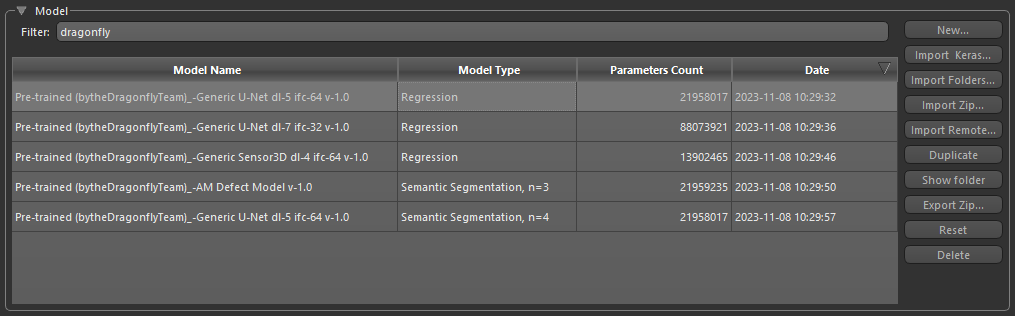
All deep models available in the Deep Trainer folder, both trained and untrained, are listed in the top section of the Model Overview panel. You can also create new models and import models from this section of the panel.
Model list
|
|
Description |
|---|---|
| Filter | Lets you filter the model list by Model Name key words. |
| Model Name |
Indicates the name assigned to the model. You can edit the name of a model by double-clicking.
Note Models names with the symbol * appended to their name indicate that the model is not saved. Unsaved changes include modifications to the model's architecture and updates to the training weights. You can save changes to a model on the Model Editing panel (see Model Editing Panel). |
| Model Type |
Indicates the model type, as follows:
Semantic segmentation… Trained for binary and multi-class semantic segmentation tasks. The number of classes is indicated for this type of model, for example n = 4. Regression… Trained for super resolution and denoising tasks. |
| Parameters Count | Is the total parameters count. |
| Date | Is the last date and time that the model was saved. |
| Pop-up menu |
You can right-click any model to access a pop-up menu with the following items:
Open Model Folder in Browser… Opens your file browser on the folder in which the selected model is stored. Display Training History… Opens the Training dialog on the selected training session. Clear Checkpoint Cache… Clears the checkpoint cache. |
A number of additional options — New, Import Keras, Import Folders, Import Zip, Import Remote, and others — are also available in the Model box.
| Description | |
|---|---|
| New | Lets you create a new model for super-resolution, denoising, or segmentation purposes (see Model Generator and Deep Learning Architectures). |
| Import Keras |
Lets you import HDF5 files (*.h5 and *.hdf5 extensions) that were created with Keras.
Keras models that your import into Dragonfly's Deep Learning Tool must meet the following requirements:
|
| Import Folders | Lets you import a model or models contained within a selected folder. |
| Import Zip | Lets you import deep models that were exported in a Zip file from Dragonfly. |
| Import Remote | Lets you browse the library of ready-to-use models and download selected models to your local library (see Ready-to-Use Deep Models). |
| Duplicate |
Creates a copy of the selected model.
Note The name of a duplicated model can be edited by double-clicking it in the Model Name column. |
| Show Folder | Opens your file browser on the folder in which the selected model is stored. |
| Export Zip | Lets you export deep models in a Zip file for sharing with colleagues and the Dragonfly community. |
| Reset |
Returns models to their untrained state by randomizing all of their weights. If you do this, your model architecture will be preserved, but you will lose all of the 'learnt knowledge' of the model.
Note Resetting a model might be necessary in cases in which training is "stuck" in a local minima and no escape is possible. |
| Delete | Deletes the selected model. |
Details
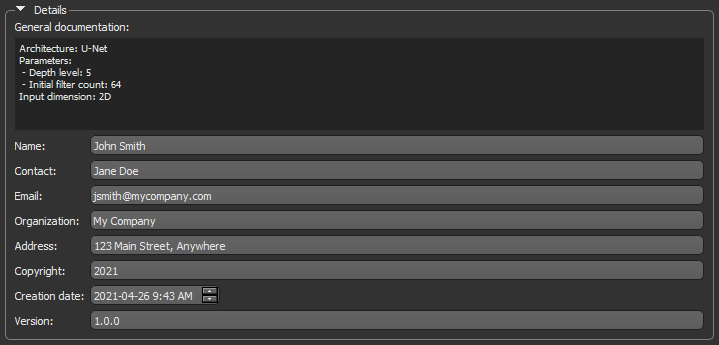
Details about the selected model — such as a general description, its architecture, author name and affiliation, copyright, and version number — are available in the Model information section of the Model Overview panel, as shown below. You should note that you do not need to load a model to view the associated metadata, which is taken from the accompanying JSON file.
Model details
| Description | |
|---|---|
| General documentation | Provides a description of the selected model, if it was previously entered in the Model Generator dialog, as well as the model's architecture, parameters, and input dimension. |
| Name | Is the name of the model's author. |
| Contact | Is the entered contact name. |
| Is the supplied email. | |
| Organization | Is the author's or contact's indicated affiliation. |
| Address | Is the address of the affiliated organization. |
| Copyright | Is the copyright date entered by the author. |
| Creation date | Is the creation date and time of the model. |
| Version | Is the version number of the model. |
Classes and Class Weights
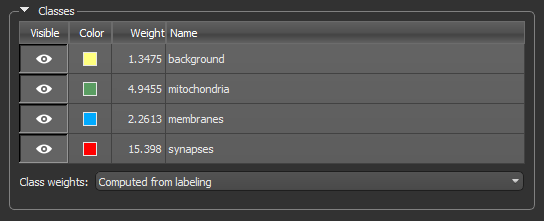
The Classes box, shown below, is available for models trained for semantic segmentation and provides a list of the model classes.
Classes

You can set a class as visible or not visible for previews, change the highlight color of a class, and rename classes. You can also adjust the class weights.
Class Weights… In some cases, training datasets may have a significant class imbalance or all phases may have similar greyscale values. To help improve the training of semantic segmentation models for such cases, you can select data proportional and custom class weights to solve class imbalance problems and to accelerate training.
The following class weights, which can be set in the Class weights drop-down menu, are available for semantic segmentation models.
| Description | |
|---|---|
| Uniform | Class weights are applied uniformly, regardless of labeling. |
| Computed from labeling |
Class weights will be recomputed at training time as an inverse proportion of the labels in the training data, as shown below.
|
| Custom |
Lets you set custom class weights.
Note Refer to the article 'How to set class weights for imbalanced classes in Keras?' (https://datascience.stackexchange.com/questions/13490/how-to-set-class-weights-for-imbalanced-classes-in-keras) for additional guidance on how to set class weights. |
Note Custom class weights are not available for the Segmentation Wizard. However, custom class weights set in the Deep Learning Tool will be propagated to any model imported into the Segmentation Wizard that was trained in the Deep Learning Tool.
Apply
You can generate previews to evaluate a model's performance before processing your data, as well as apply trained models to selected datasets, with the options in the Apply box (see Previewing Model Inference and Applying Deep Models).
